
If you do not already have a Google Merchant Center account, please visit https://business.google.com/in/business-profile/ to sign-up.
You will also need to ensure that you have enabled the Google Customer Reviews program within your Google Merchant Center. Please make sure that your store is eligible for the Google Customer Reviews program and then enable the program for your store.
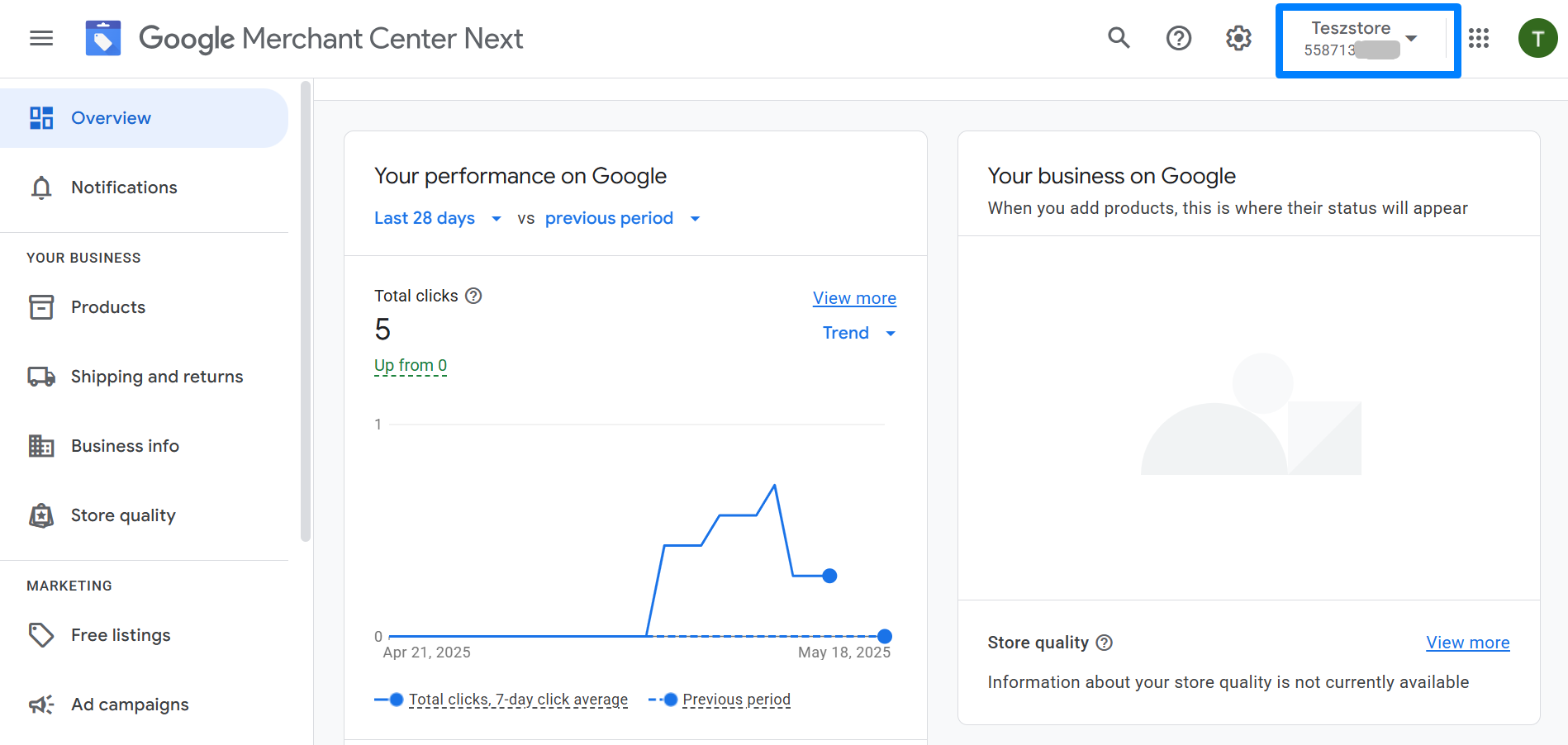
Make sure that you are logged in to your Google Merchant Center account as you will need your Merchant ID. You can find your Merchant ID in the top right-hand side of the Google Merchant Center underneath your company/entity name:
Within the TSS google Customer reviews app, click on the Configure and activate TSS google Customer reviews button:
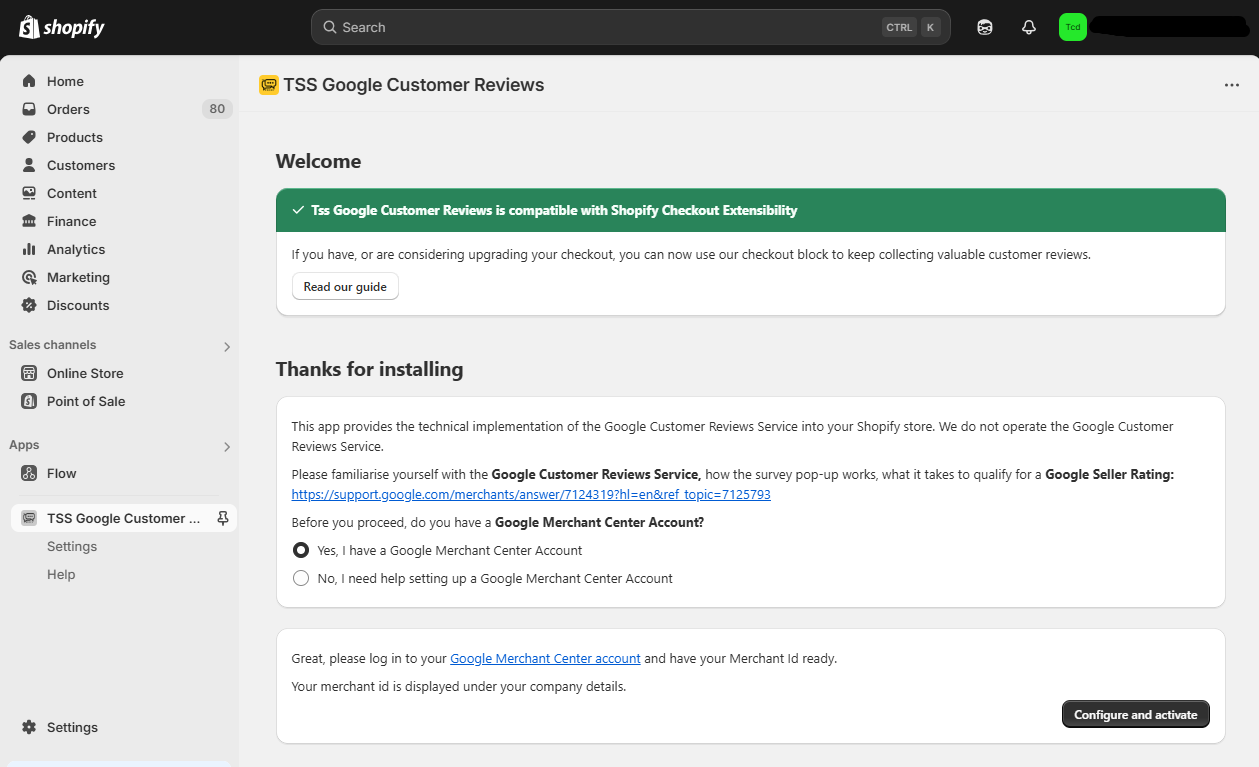
You will then be presented with the survey opt-in pop-up and website badge settings:
Let's take a look at each of those settings and what they do:
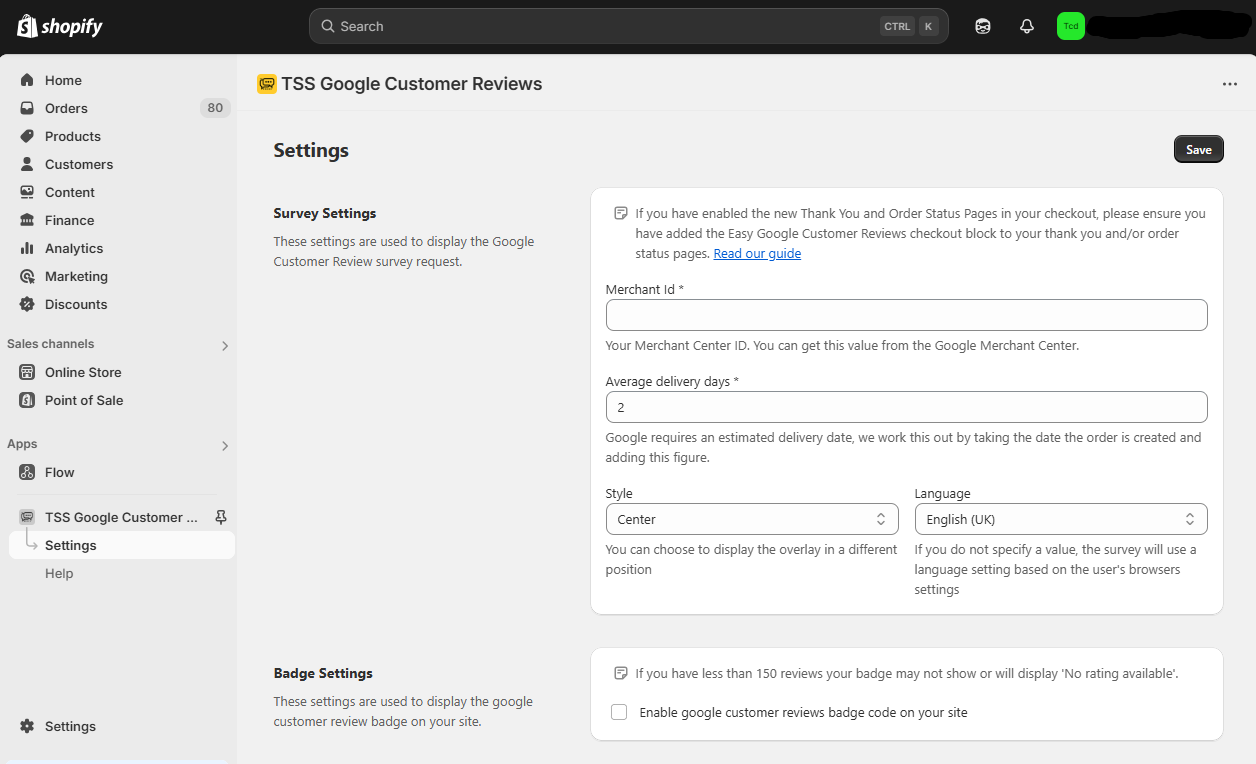
Please enter the Merchant ID as it appears within your Google Merchant Center:
The Google Customer Reviews program requires you to provide an idea of the average number of days it takes for a customer to receive their order. We appreciate that this can vary depending on the items in the order and how far it has to travel. We would recommend that you add a couple of days on to that average number.
Google will use this value to know when to email a survey over to the customer (if they opted-in).
This setting controls the position of the survey opt-in pop-up on your page. The available options are as follows:
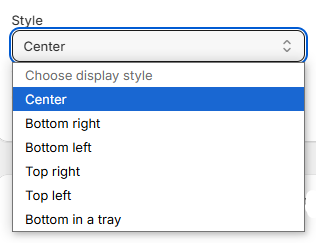
The Bottom in a tray style setting will display the survey opt-in as a full-width tray across the bottom of the page rather than as a pop-up.
This setting allows you to select the default language of the text that will appear in the survey opt-in pop-up from Google.
If you do not specify a Language, the survey opt-in pop-up will appear in the language that the customer's browser is set to.
If there is a language missing from the options available, please get in touch and let us know.
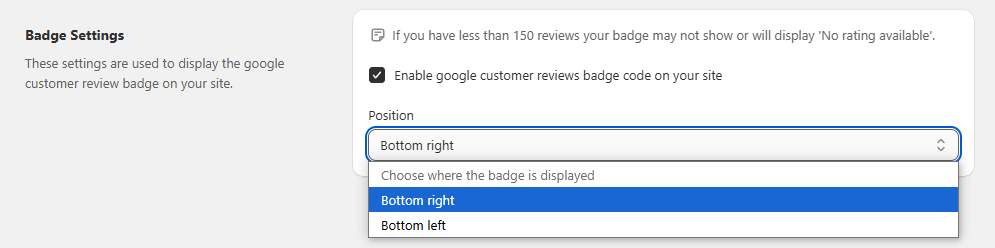
There is only one setting within the app to configure the Google Customer Reviews website badge and this controls the position of the badge on your store.
Within the Badge Settings section locate the Position setting and click on the dropdown:
Select either Bottom right or Bottom left for the position of the badge and then hit Save:
That's it!
To enable the website badge on your store, make sure that the Enable google customer reviews badge code on your site checkbox is selected.
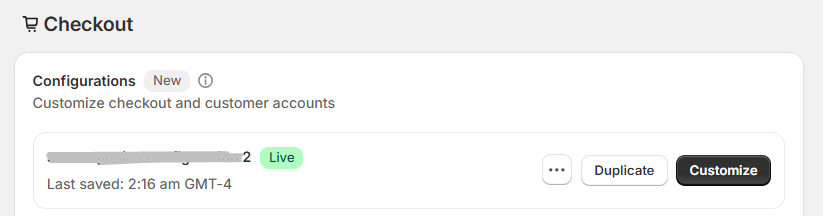
Head to the Checkout Editor within your Shopify Store by navigating to Shopify Admin > Settings > Checkout and within the Configurations section, select the Customize button:
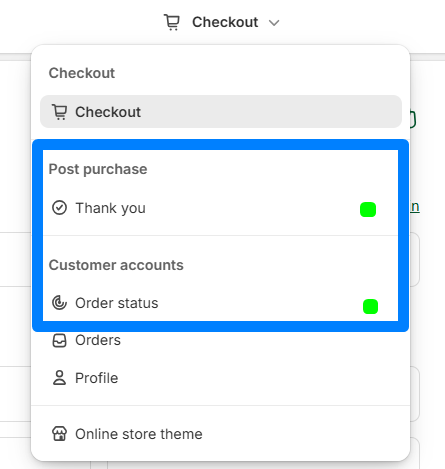
Start by selecting the Thank you or Order Status page:
At the bottom of the left-hand pane of the Checkout Editor, select Add app block:
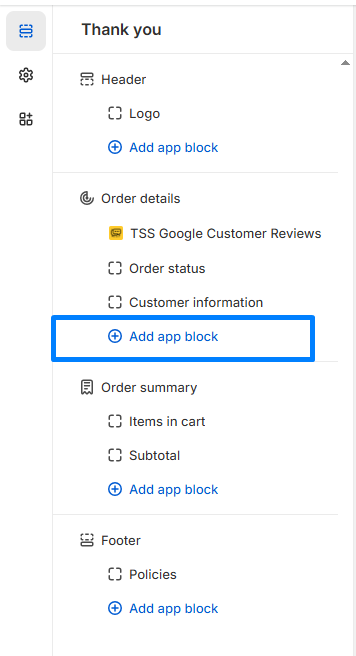
Select the TSS Google Customer Reviews app block from the available app blocks:
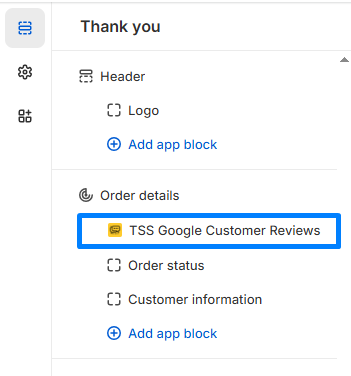
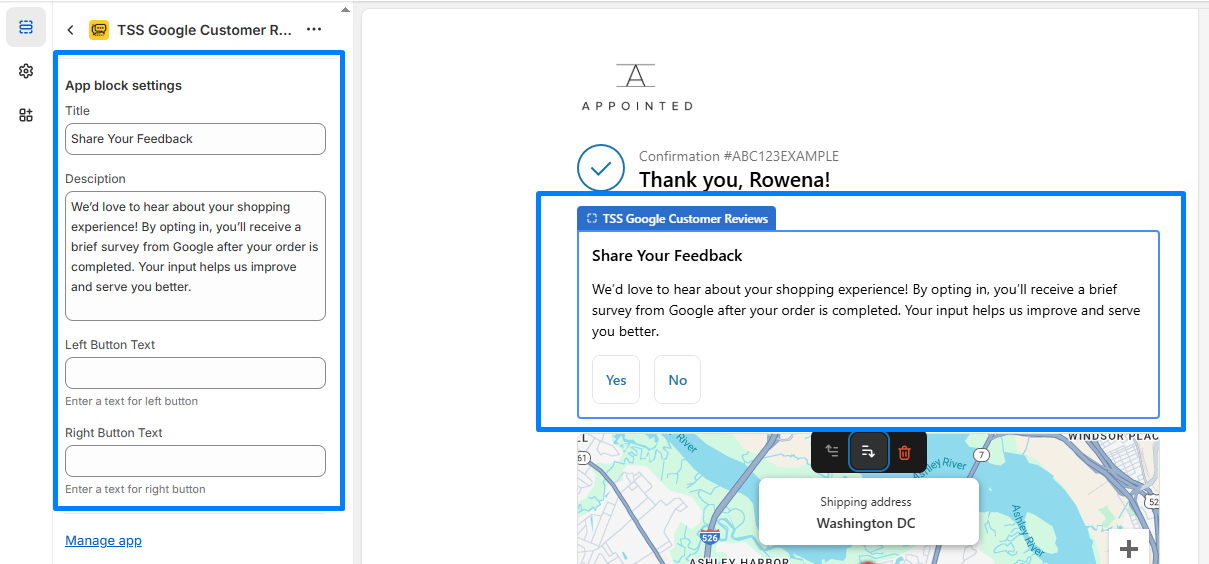
The app block will be added to your Thank you page:
You can change the block title, description, and both buttons. You can also customize the block to make it ready.
You can re-order the apps as required by hovering over them and dragging and dropping:
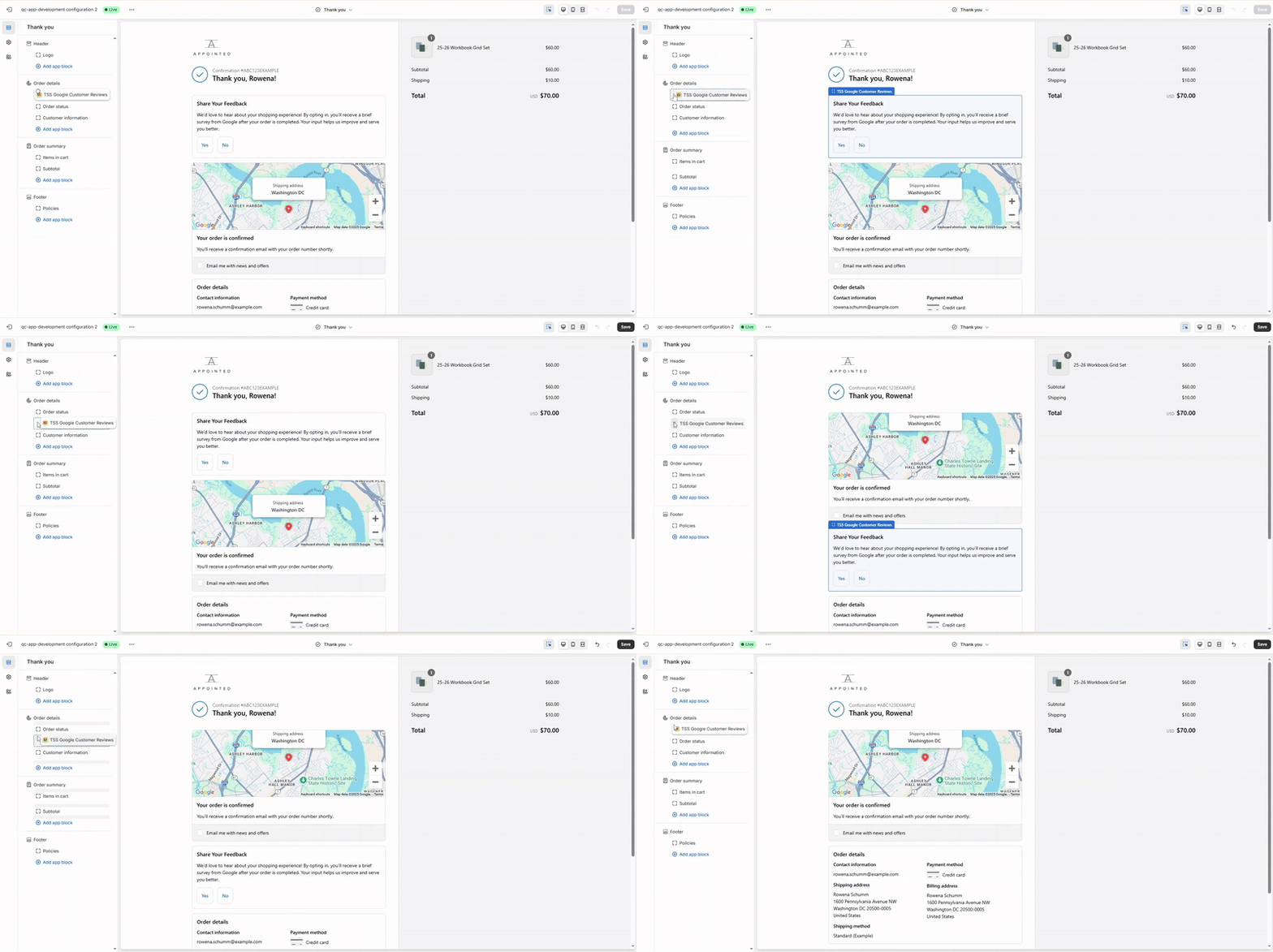
Make sure that you save the page before repeating the steps above for your Order Status page.
When a customer has made a purchase on your store, they will be presented with the TSS Google Customer Reviews app block towards the top of the Thank You page
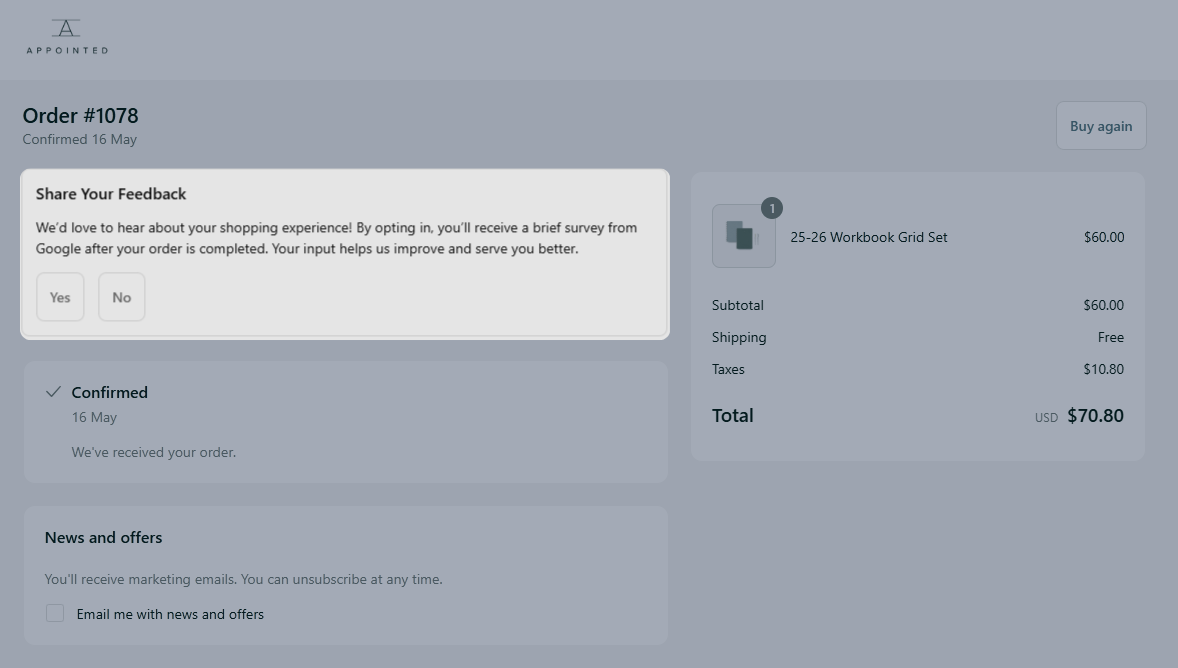
If the customer selects YES , they will then be redirected to a proxy page, a page that is created by our app but hosted on your store. If the customer selects No , the app block will disappear from the Thank You page.
When visited, the hosted proxy page will contain the order, product and customer details that the Google Customer Reviews program needs and it will automatically trigger the survey opt-in pop-up.
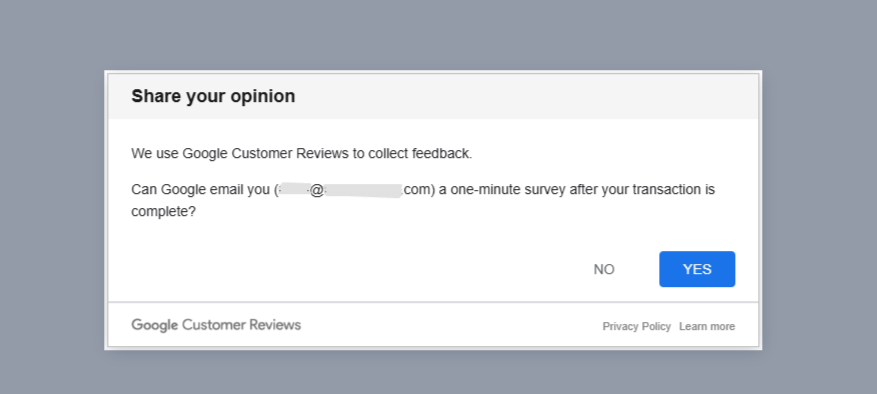
When visited, the hosted proxy page will contain the order, product and customer details that the Google Customer Reviews program needs and it will automatically trigger the survey opt-in pop-up.
If the customer selects NO , the pop-up window will close and no information will be sent through to the Google Customer Reviews program.
If the customer selects either YES or NO , they will remain on the hosted proxy page which contains a message and a link that will return the customer to their Order Status Page.
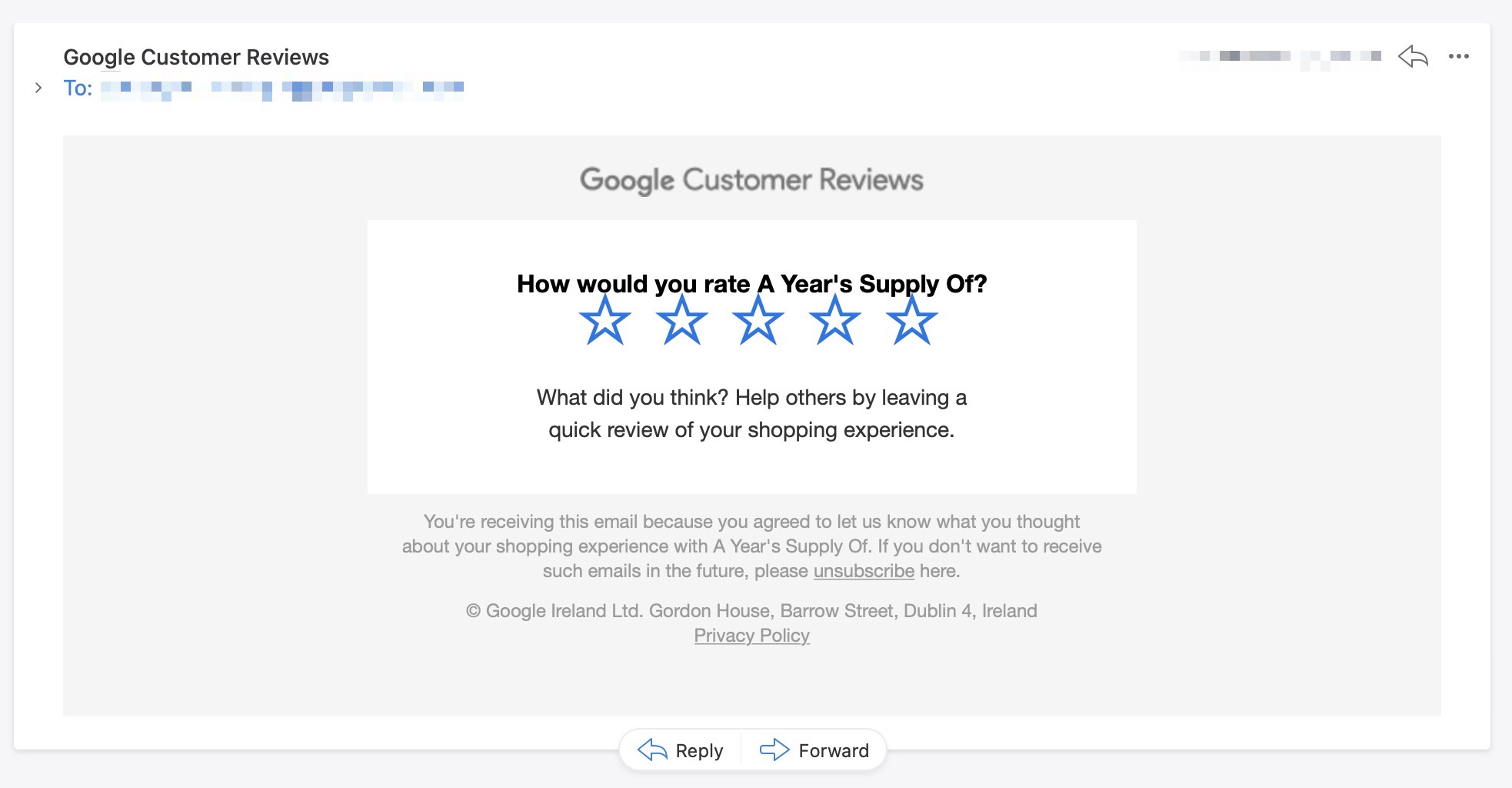
Google will decide who to send an email survey to and when (survey settings dependant). The email survey will look as follows:
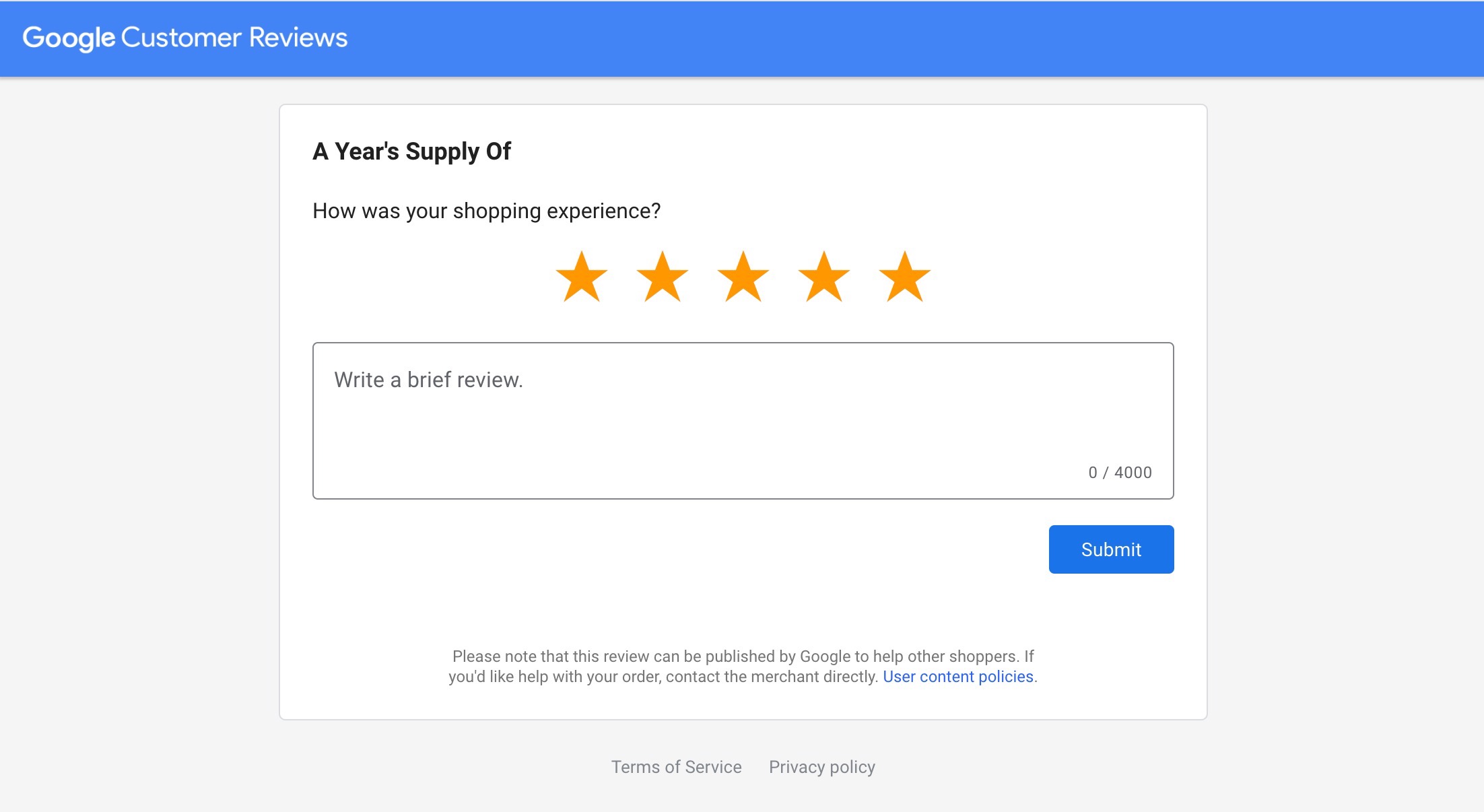
When the customer clicks on a star rating, it will load a page on the Google Customer Reviews platform asking them a question and providing an area for them to input their answer.
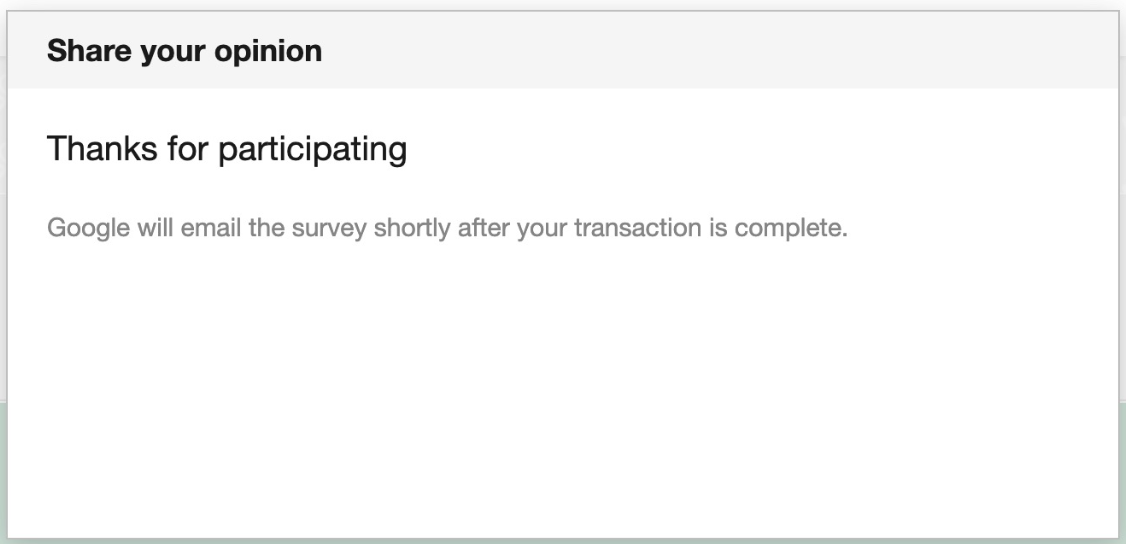
On submitting their answer, a thank you message will appear:
There are 5 key metrics that show up in your Google Customer Reviews dashboard. Metrics can also be viewed in a specific country by selecting one in the dropdown:
This metric shows the number of customers in a given day that have opted-in to the Google Customer Reviews survey.
This metric shows the number of surveys emailed to your customers in a given day. Some customers who opt-in may not be emailed a survey. Also note that there is a delay between when a customer opts-in and when a survey is sent.
This metric shows the number of survey responses customers have submitted in a given day.
This metric provides the store rating displayed within your badge, search, and Shopping ads during the time period shown.
The Product Reviews section of your Google Customer Reviews dashboard contains information about the status of your eligibility for Product Ratings.